
Lookup Pass help · iPhone
Missing an expected text? Check both iPhone filters.
Apple’s Filter Spam and the Lookup Pass text filter are separate controls. Compare them one at a time to find which setting changes delivery on your phone.
Two settings with different jobs
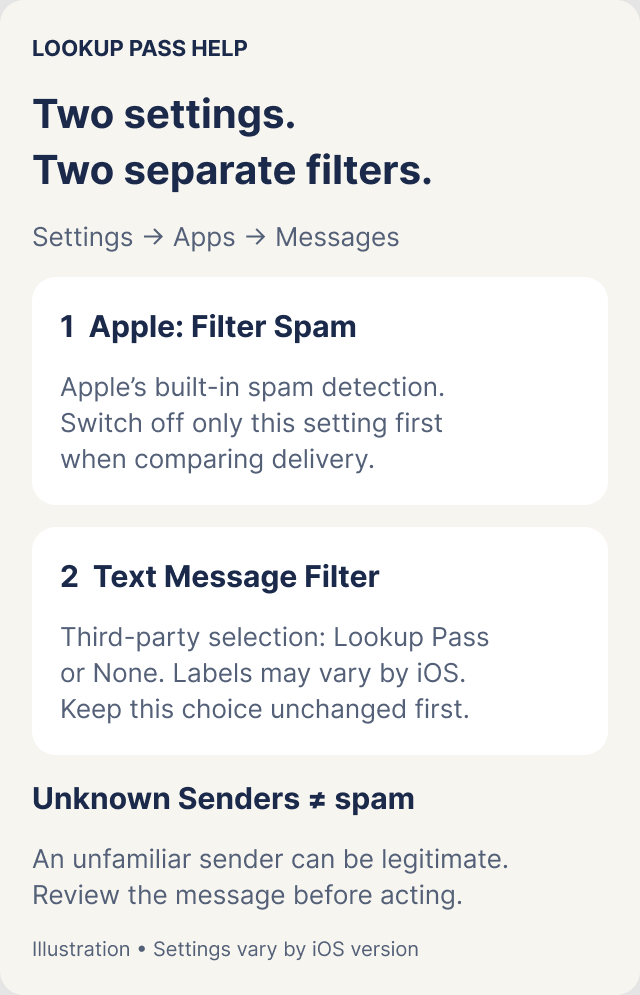
Apple: Filter Spam
In Settings → Apps → Messages, Filter Spam is Apple’s built-in on-device spam detection. It can operate while the third-party text filter is set to None. Apple says identified spam should go to the Spam folder without a notification.
Third-party: Lookup Pass text filtering
The Text Message Filter / SMS Filtering selection chooses a third-party filter such as Lookup Pass. Depending on iOS, it may be under Unknown & Spam or a filtering menu. Selecting Lookup Pass here is separate from Apple’s Filter Spam switch and from SMS/Call Reporting.
Unknown Senders does not mean spam
A legitimate SMS from someone outside your contacts may appear in Unknown Senders. That folder alone is not evidence that Lookup Pass flagged the sender as spam.
Labels and available options vary by iOS version, language and region.
Compare one setting at a time
For a reported missing-text problem, temporarily turn off Apple’s Filter Spam to compare fresh delivery. This is a troubleshooting step, not a recommendation that everyone disable Apple’s protection. Filtering is reduced while a setting is off; treat unexpected messages and links cautiously. Use an ordinary test SMS, not a password or verification code.
- Record your starting settings.Note the iPhone model, iOS and Lookup Pass versions, Filter Spam on/off, and the selected Text Message Filter. Confirm the sender is sending SMS rather than iMessage or RCS.
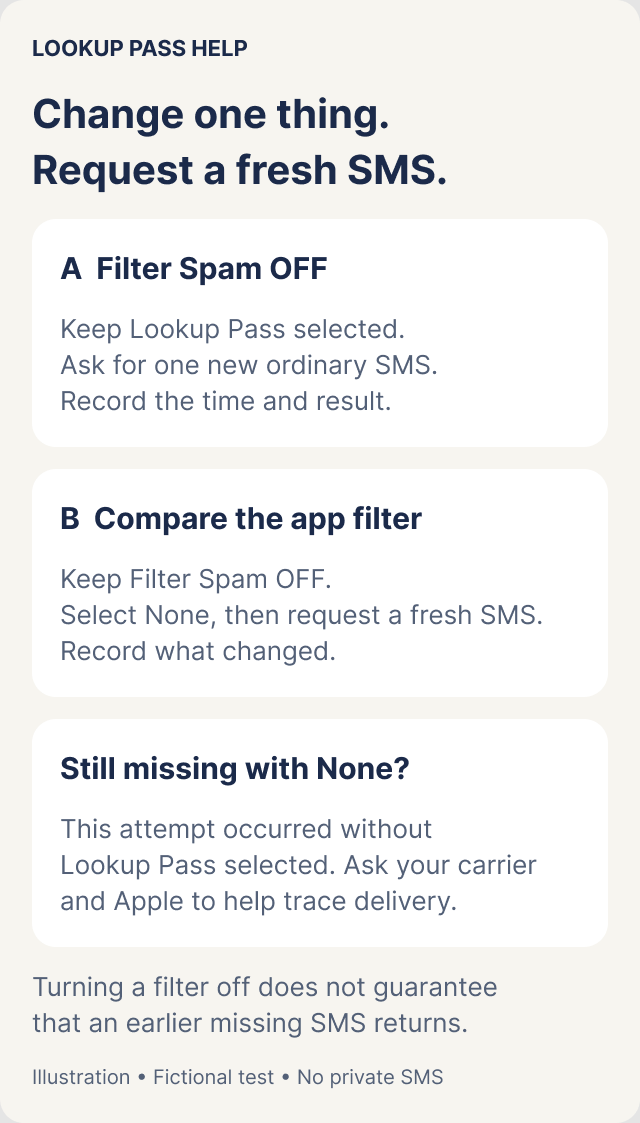
- Turn off only Apple’s Filter Spam.Open Settings → Apps → Messages. Leave Lookup Pass selected as the third-party text filter. Ask the sender for a fresh SMS and note its time and time zone, whether it appeared, and in which folder.
- If needed, compare without the third-party filter.Keep Apple’s Filter Spam off. Set Text Message Filter / SMS Filtering to None, then request another fresh SMS. Record the result. Change only one control between attempts.
- Use the result to narrow the next step.If delivery changes with Lookup Pass selected versus None, leave the affected filter off and contact Lookup Pass support. If the symptom also occurs with None selected, that attempt occurred without Lookup Pass selected; ask your carrier and Apple to investigate too.
Turning a filter off does not guarantee that an earlier missing SMS will reappear. A fresh message is needed for each comparison. Do not mark a legitimate sender as Spam or Robocall just to test delivery; reports can affect reputation.
Review Spam once, then record what is missing
In Messages, open Filters → Spam. If a legitimate message is there, open it and use Not Spam → Move to Inbox, following the options your iPhone shows. Also review Unknown Senders for the expected sender. Do not assume an absent message must be in Spam: if it is not present, record that result for support.
A sender’s “delivered” status or carrier delivery confirmation is useful evidence. It does not by itself establish where the message is visible inside Messages.
What our troubleshooting has shown
In one reported iPhone comparison, fresh SMS appeared with Apple’s Filter Spam off, but were not visible with it on—even when Lookup Pass was not selected. That points to a separate Apple-setting interaction on that device. It does not prove an Apple bug, explain the exact cause, or mean all iPhones are affected. Android uses a different delivery path and must be investigated separately.
Send support the delivery details
Email support@verirouteintel.com with:
- iPhone model, iOS version and Lookup Pass app version.
- The affected sender number or short code and approximate send time, including time zone.
- Filter Spam on/off and the selected third-party filter for each fresh test; whether it arrived and where.
- Whether the text was SMS, whether Spam / Unknown Senders contained it, and any sender or carrier delivery receipt/reference available.
Do not send message bodies, one-time codes, passwords or unredacted screenshots. Share only the delivery metadata needed to investigate. If a text is urgent, use another trusted way to contact the sender.
Apple’s guidance
View and recover spam messages on your iPhone explains Filter Spam and recovery. View conversations from unknown senders in Messages on your iPhone covers unknown senders and third-party filters.
Updated November 6, 2026. Settings may change with iOS updates.